0. Intro
1. Create Linux Instance
2. Connect to your instance
2.1 Windows via putty
2.2 Linux via terminal
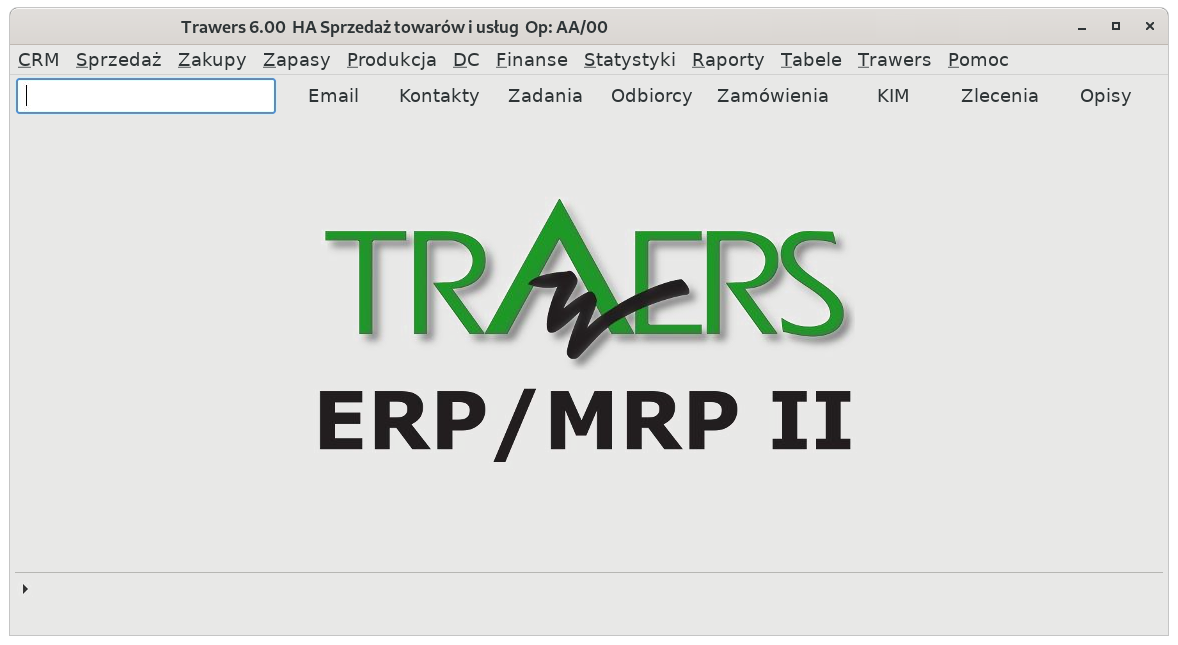
3. Trawers installation
4. Connect to Trawers using X2Go
5. Related Articles
Trawers w chmurze
Trawers może być użytkowany w chmurze (wirtualizacja) (en: Cloud Computing).
Taką usługę oferuje np. Amazon EC2
Program zainstalowany jest na wirtualnym serwerze usługodawcy,
a praca odbywa się w trybie zdalnego dostępu.
Patrz pojęcie: chmura obliczeniowa
Korzyści pracy w chmurze:
* Nie trzeba posiadać własnego sprzętu (serwera) oraz dbać o jego serwisowanie
i stan techniczny
* Nie trzeba zatrudniać specjalistów IT
* Można dowolnie zwiększać zasoby: bazy danych i procesy obliczeniowe.
* Ogólnie: niższe koszty użytkowania
Używanie programu Trawers można rozpocząć praktycznie natychmiast
konfigurując parametry dostępu przez internet.
0. Intro
It is possible to launch Trawers on Amazon Web Services (AWS),
using the Amazon Elastic Compute Cloud.
Steps
* Sign up for Amazon Web Service
* Create Linux Instance
* Connect to instance
* Trawers installation
* Connect to Trawers using X2Go
The first thing you need to do is to sign up for Amazon Web Services.
https://docs.aws.amazon.com/AWSEC2/latest/UserGuide/EC2_GetStarted.html
1. Create Linux Instance
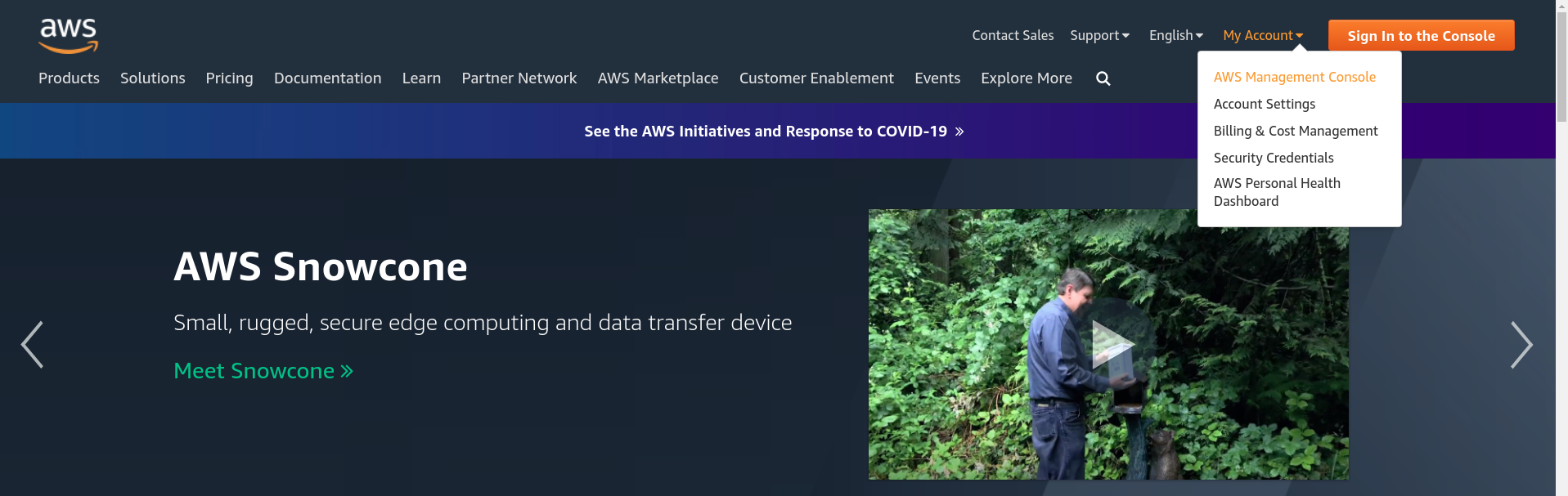
To launch a Linux instance use the AWS Management Console.
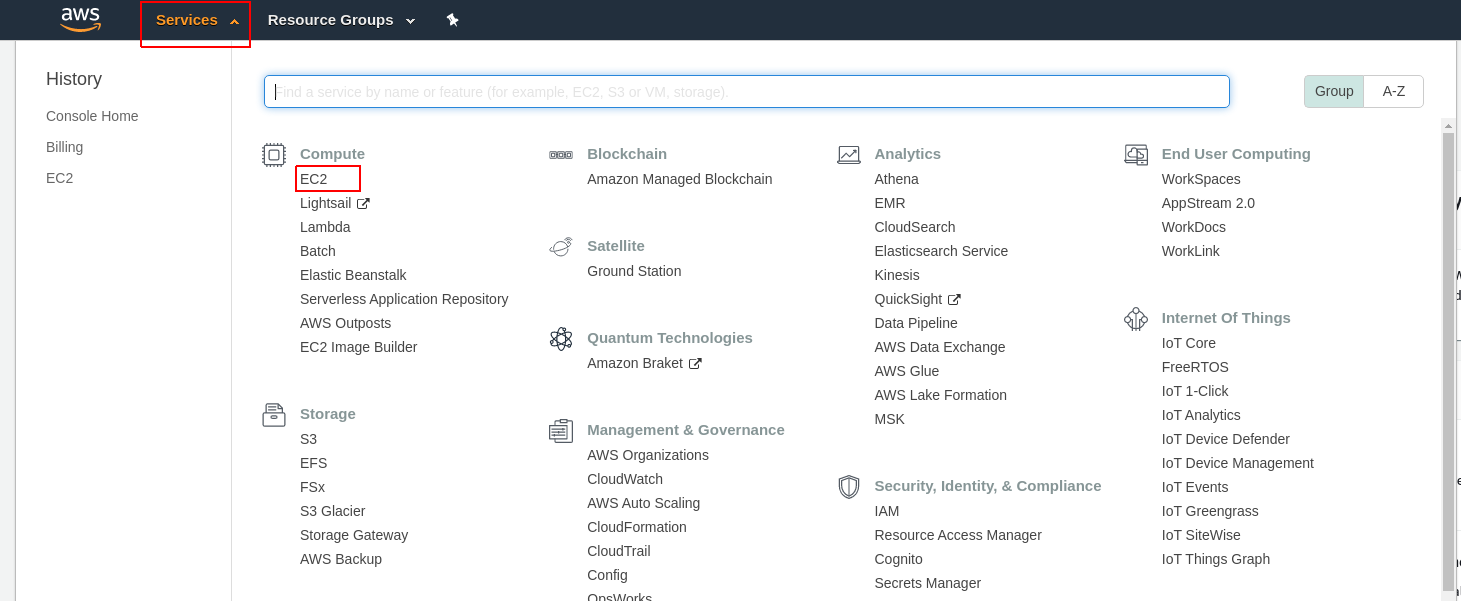
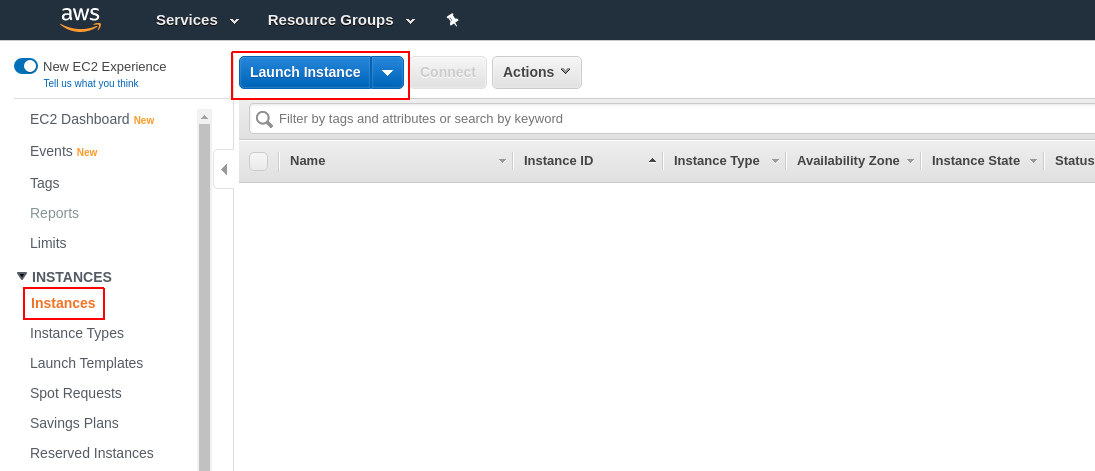
In the tab Services choose EC2.
The next step is to Launch an Amazon EC2 instance.
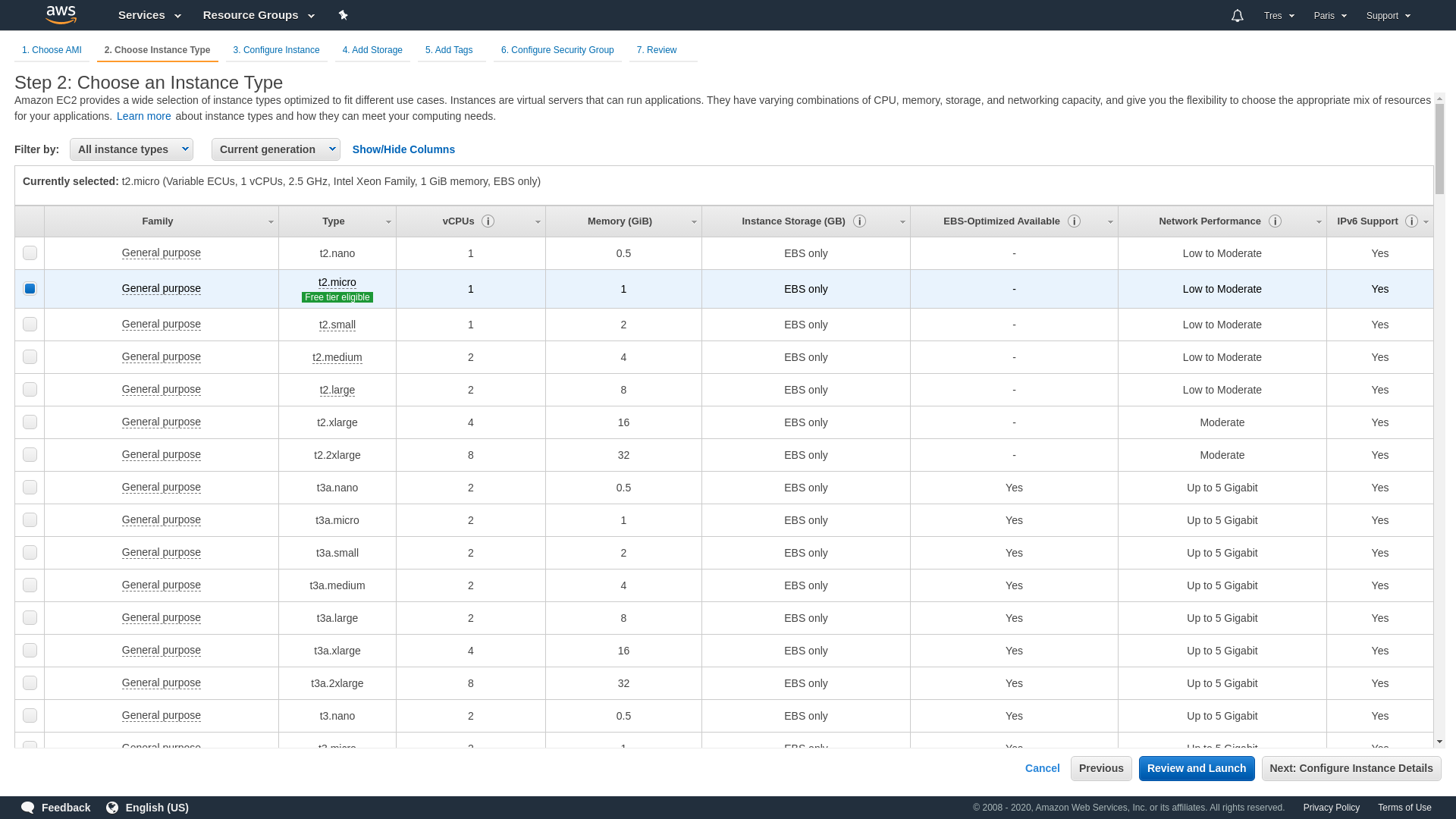
Choose Ubuntu Server 18.04 LTS image.
Choose hardware configuration of your instance.
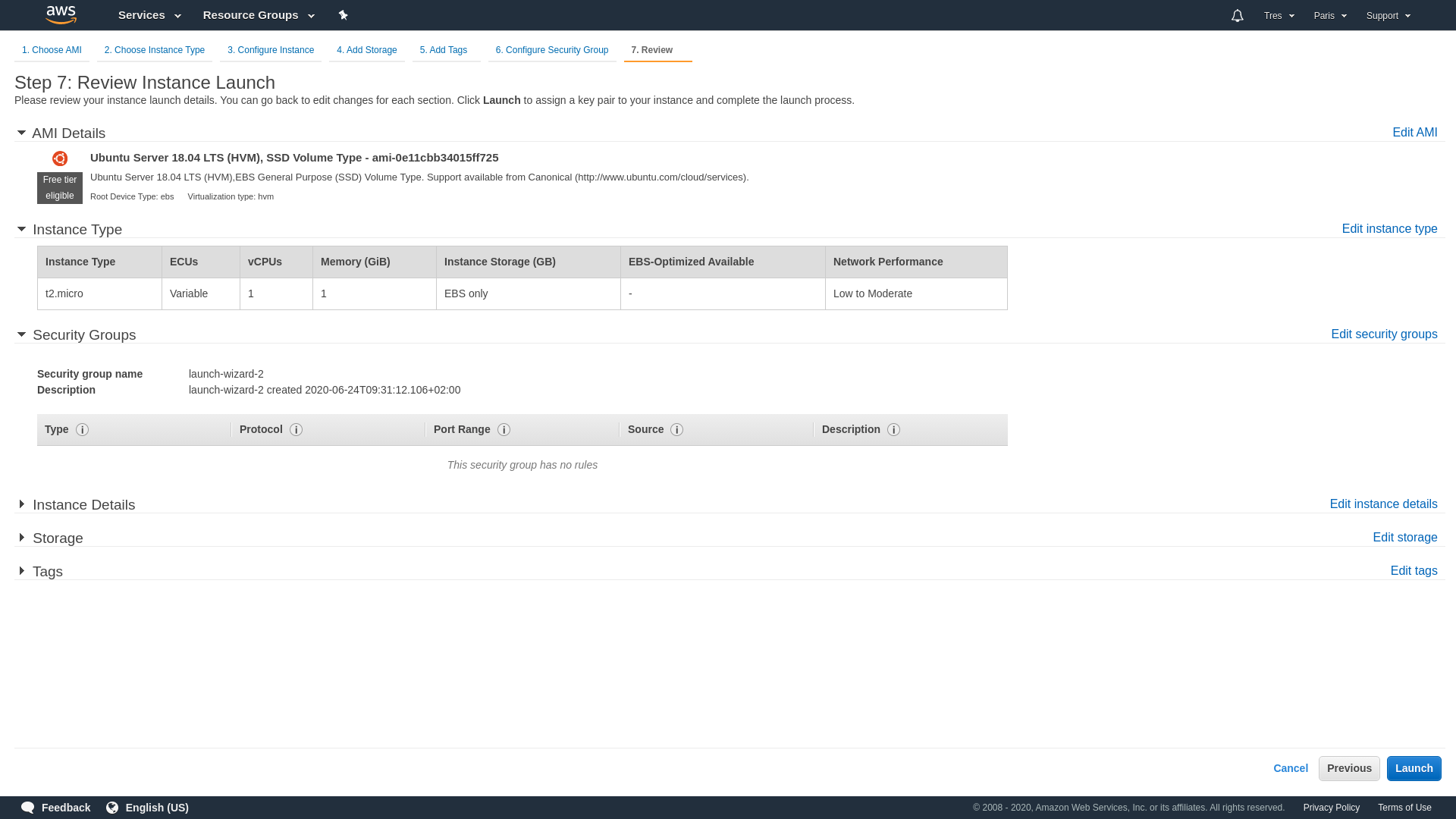
Now you need to review instance parameters and click launch.
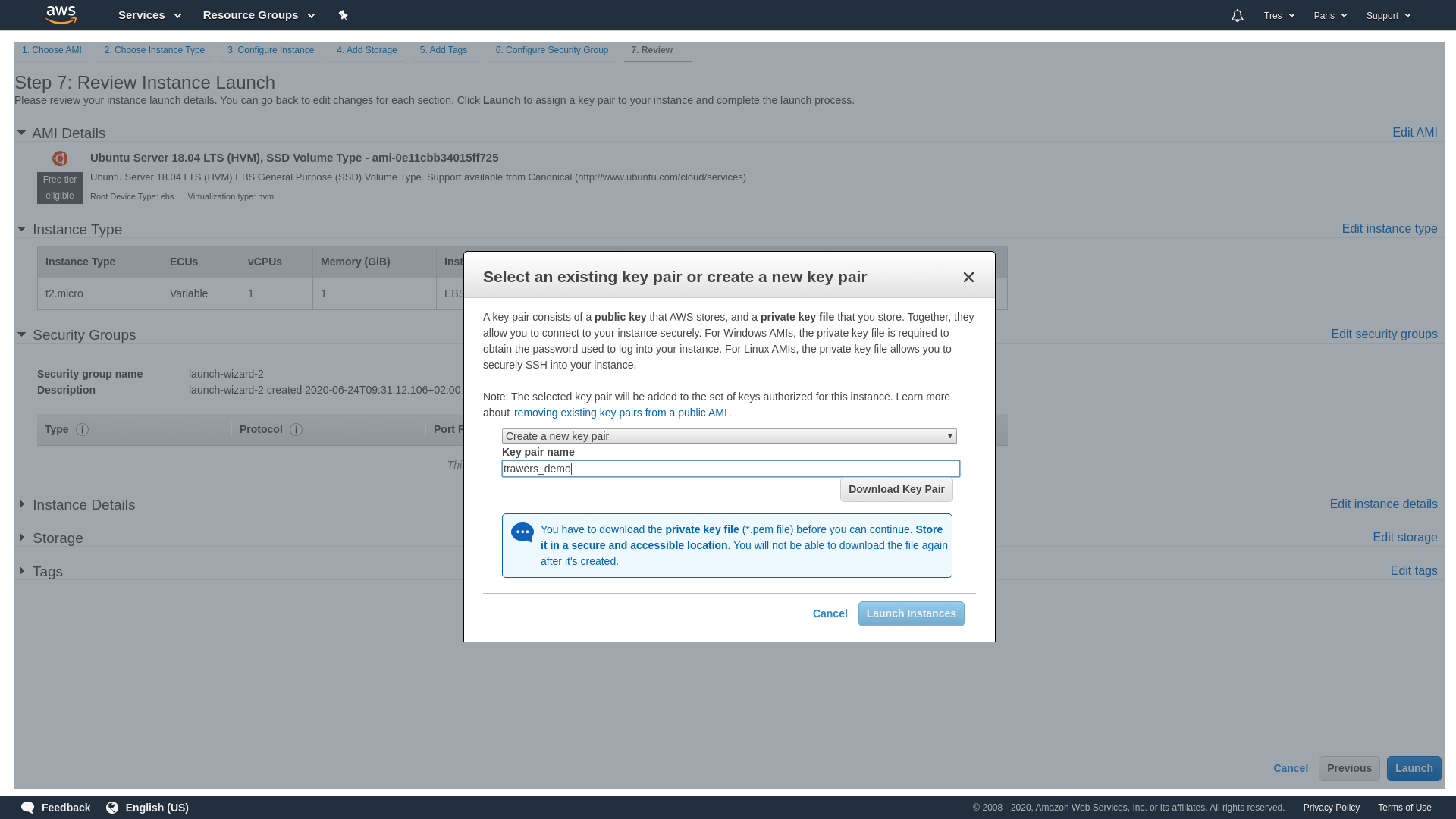
AWS uses public-key cryptography to secure the login information
for your instance. You specify the name of the key pair when you
launch your instance, for example new key-pair trawers_demo.
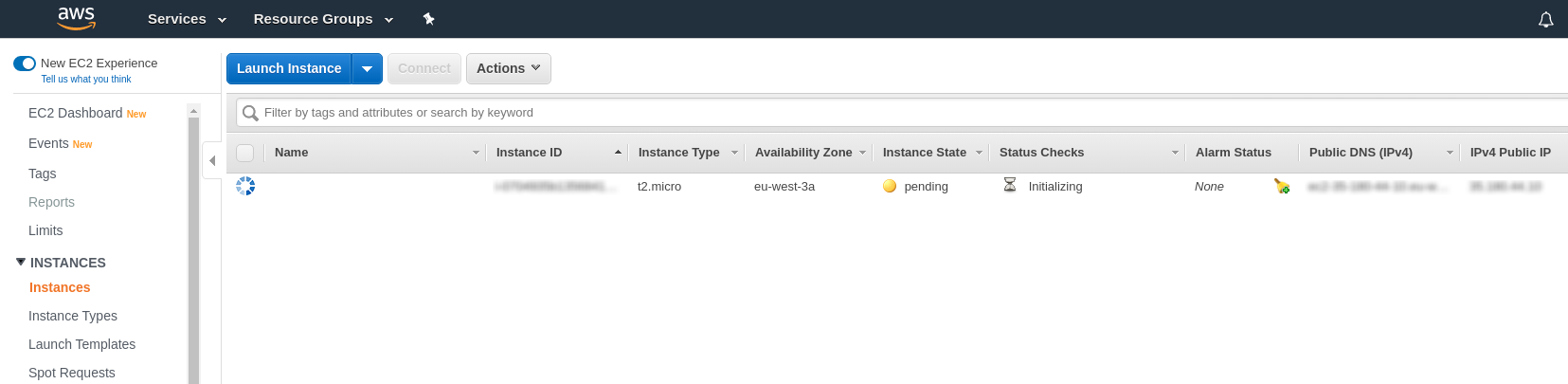
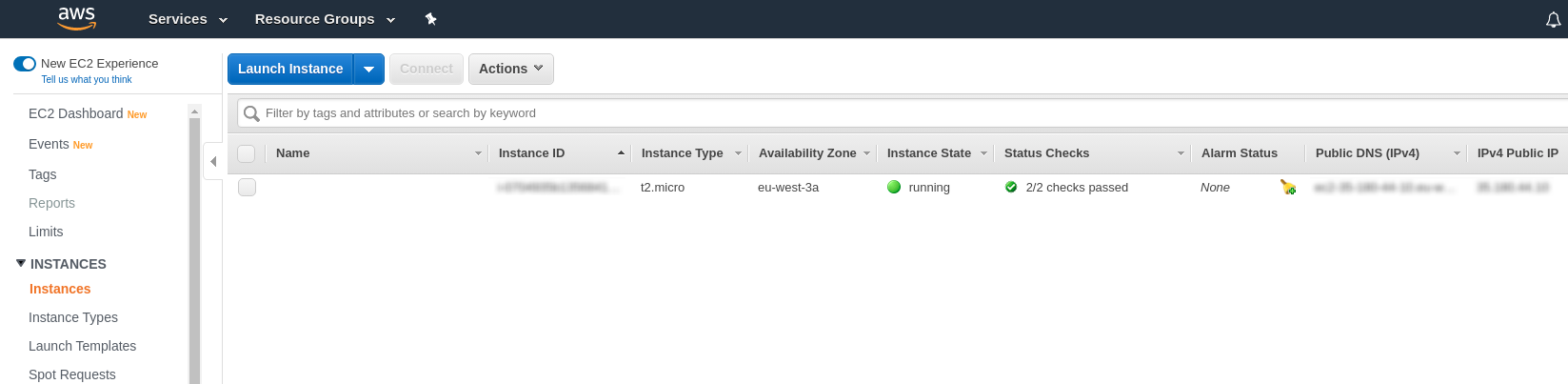
It can take a few minutes for the instance to be ready so that you can connect to it.
2. Connect to your instance
IP Address: See Instance summary [Public IPv4 address]
Username: depends on system (f.e. Ubuntu Linux: ubuntu)
NOTE: The IP address may change after stopping and restarting the instance.
2.1 Windows via putty
Download Putty from www.putty.org. PuTTY does not natively support
the PEM format that AWS uses, so you need to first convert your PEM file
to a PPK file (PuTTY Private Key).
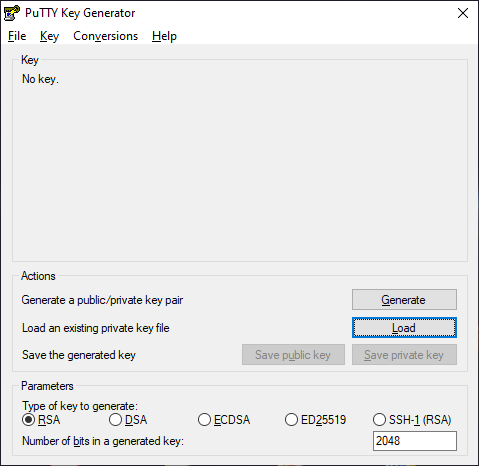
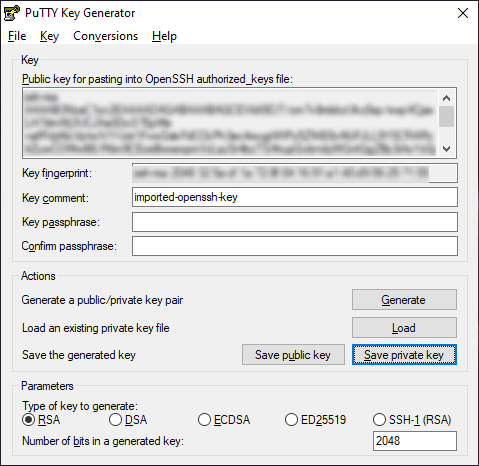
To do this, use the PuTTYgen utility.
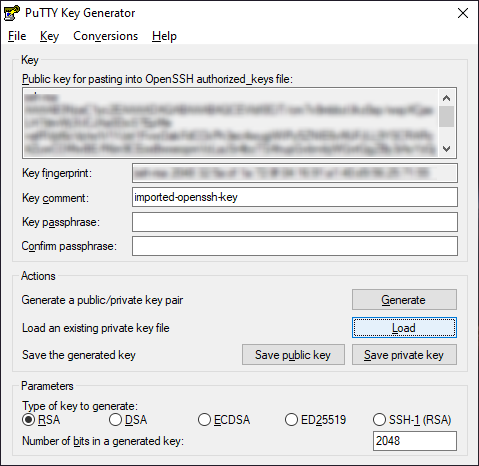
Load trawers_demo.pem
Save private key
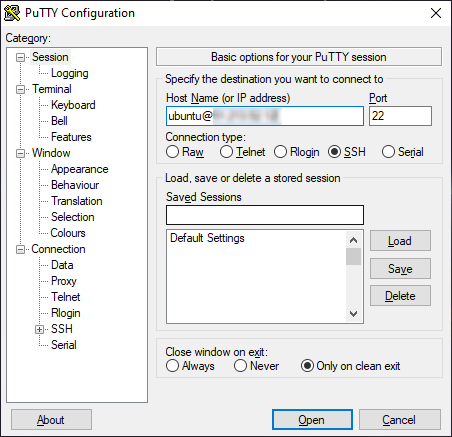
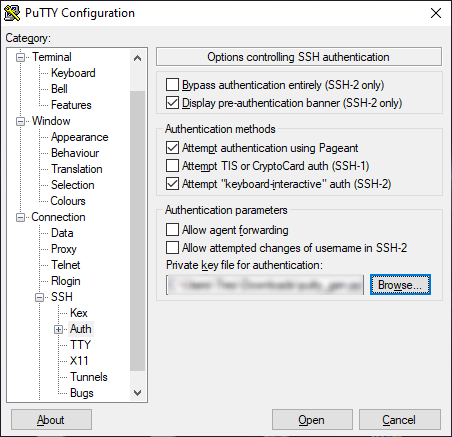
Use Putty utility to login
2.2 Linux via terminal
Download the .pem file. Open up a Terminal window and create Create a directory:
mkdir -p ~/.ssh
Move the downloaded trawers_demo.pem file to the .ssh directory we just created:
mv ~/Downloads/trawers_demo.pem ~/.ssh
Change the permissions of the .pem file so only the user can read it:
chmod 700 ~/.ssh/trawers_demo.pem
In a terminal window, use the ssh command to connect to the instance:
ssh -i ~/.ssh/trawers_demo.pem ubuntu@my-instance-public-dns-name
3. Trawers installation
Install helpful tool: mc Midnight Commander:
sudo apt-get update
sudo apt-get install mc
Install libraries libraries required by Trawers:
sudo apt-get install libwebkitgtk-1.0-0 libfontconfig libpango-1.0 libcairo2 libgdk-pixbuf2.0-0 libpangocairo-1.0-0 libatk1.0-0
Install firefox and X2GO Server:
sudo apt-get install firefox
sudo apt-get install x2goserver
Install fonts:
sudo apt-get install ttf-mscorefonts-installer
sudo fc-cache
Download trawers from ftp server public@ftp.tres.pl with password trawers6
using Midnight Commander:
mkdir /home/Downloads
cd /home/Downloads
mc
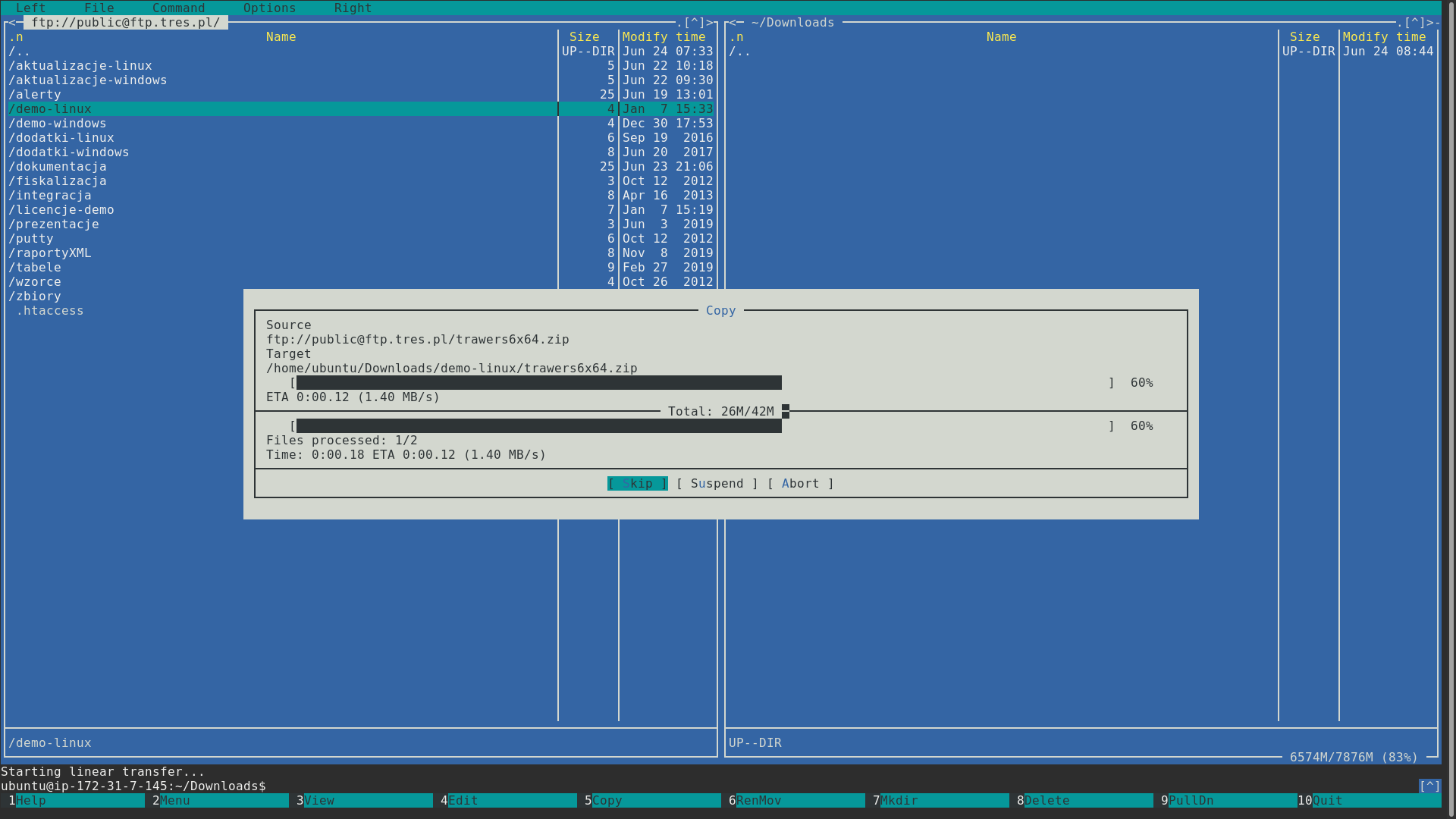
Connect to ftp server public@ftp.tres.pl with password "trawers6", copy folder demo-linux to your
local folder (F5) and exit Midnight Commander
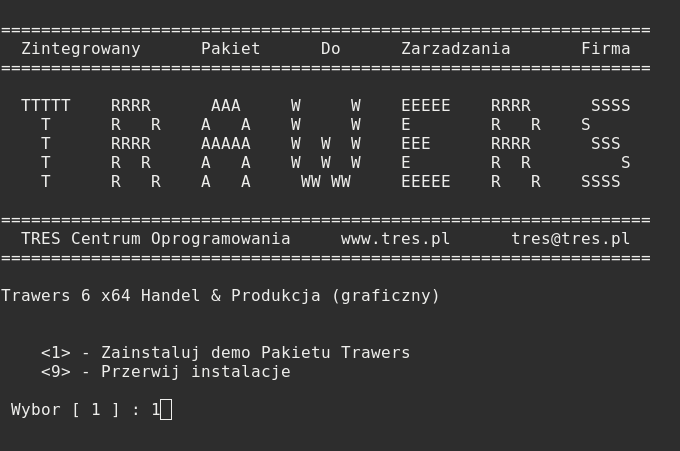
Unzip archive trawers6x64.zip and install Trawers as root (or sudo) user:
cd demo-linux
unzip ./trawers6x64.zip
cd trawers6/
chmod +x ./trawers6.sh
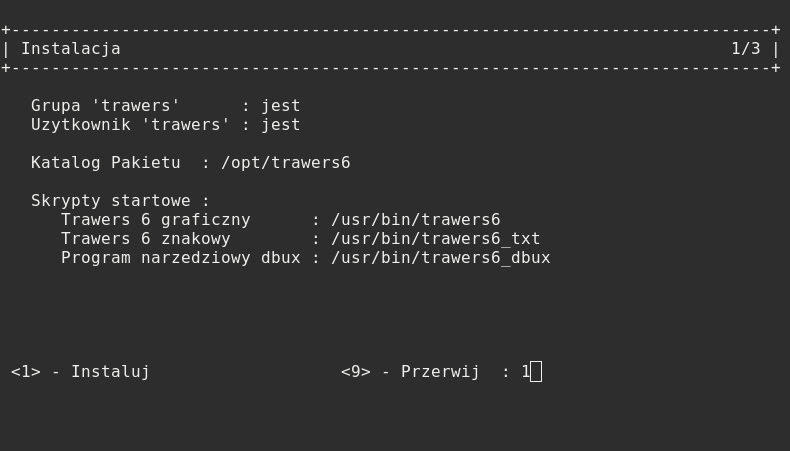
sudo ./trawers6.sh
NOTE: Choose strong password for 'trawers' user when prompted.
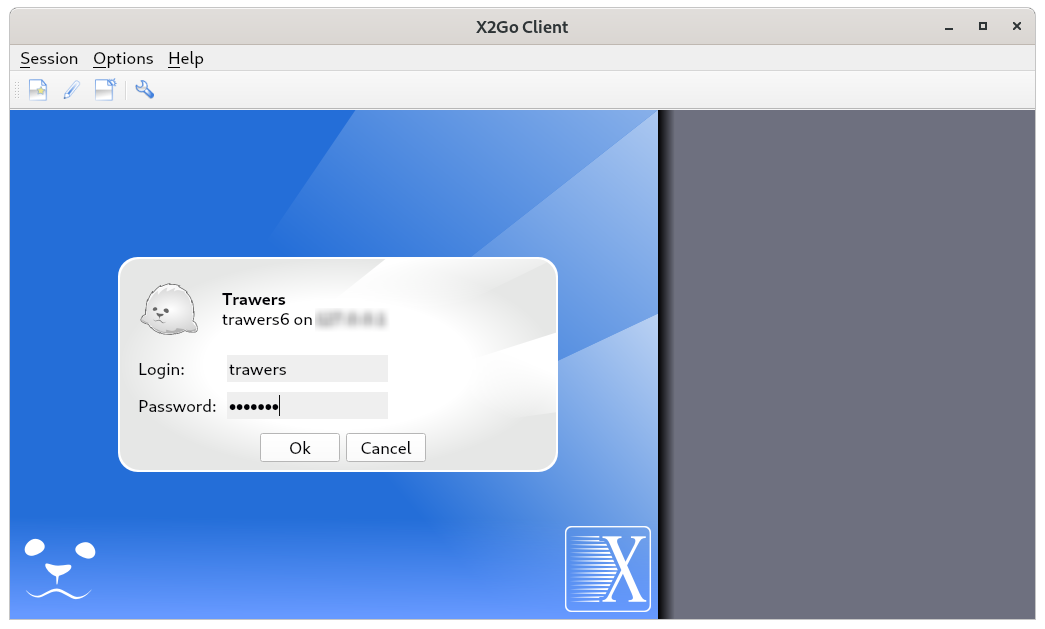
4. Connect to Trawers using X2Go
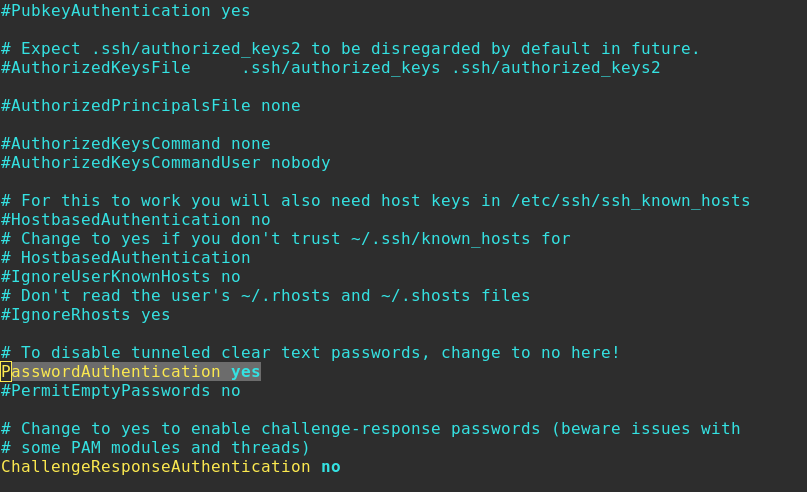
Enable SSH password authentication.
sudo vim /etc/ssh/sshd_config
Change PasswordAuthentication to yes
Restart ssh service:
sudo service ssh restart
Download X2Go client https://wiki.x2go.org/ and install
Add new session
Connect via new session
 In the tab Services choose EC2.
 The next step is to Launch an Amazon EC2 instance.
 Choose Ubuntu Server 18.04 LTS image.
 Choose hardware configuration of your instance.
 Now you need to review instance parameters and click launch.
 AWS uses public-key cryptography to secure the login information
for your instance. You specify the name of the key pair when you
launch your instance, for example new key-pair trawers_demo.
AWS uses public-key cryptography to secure the login information
for your instance. You specify the name of the key pair when you
launch your instance, for example new key-pair trawers_demo.
 It can take a few minutes for the instance to be ready so that you can connect to it.
 Save private key
 Use Putty utility to login
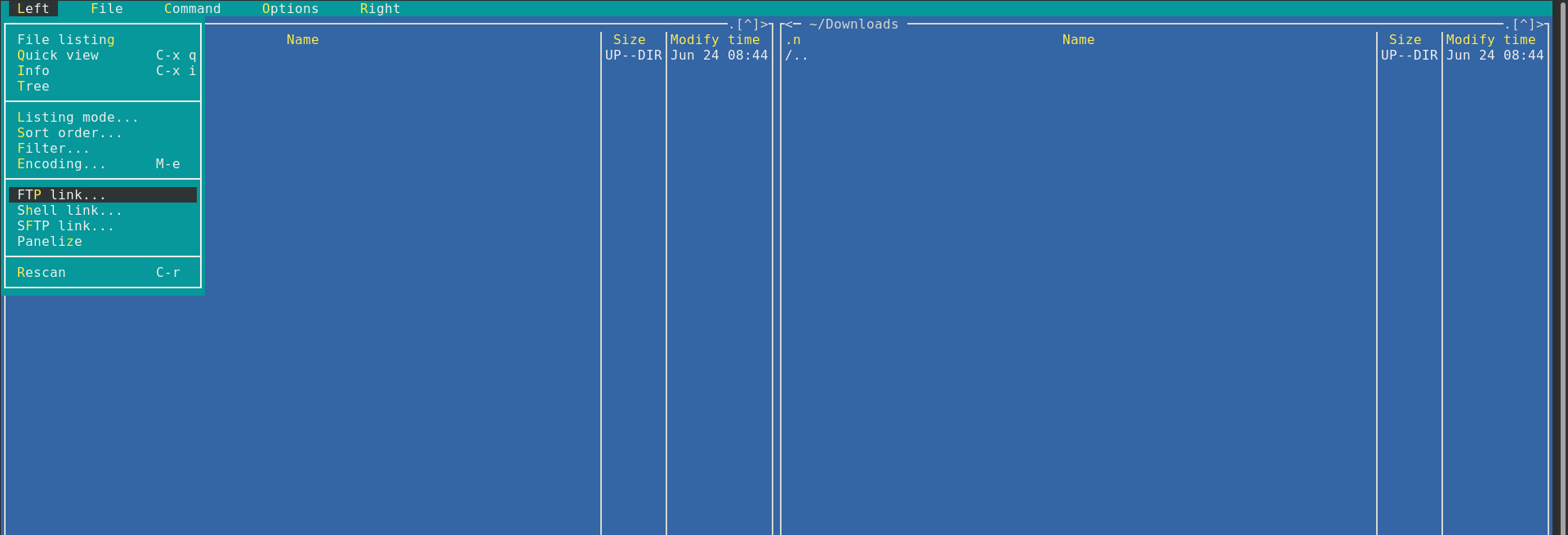 Connect to ftp server public@ftp.tres.pl with password "trawers6", copy folder demo-linux to your
local folder (F5) and exit Midnight Commander
Connect to ftp server public@ftp.tres.pl with password "trawers6", copy folder demo-linux to your
local folder (F5) and exit Midnight Commander
 Unzip archive trawers6x64.zip and install Trawers as root (or sudo) user:
cd demo-linux
unzip ./trawers6x64.zip
cd trawers6/
chmod +x ./trawers6.sh
sudo ./trawers6.sh
NOTE: Choose strong password for 'trawers' user when prompted.
Unzip archive trawers6x64.zip and install Trawers as root (or sudo) user:
cd demo-linux
unzip ./trawers6x64.zip
cd trawers6/
chmod +x ./trawers6.sh
sudo ./trawers6.sh
NOTE: Choose strong password for 'trawers' user when prompted.
 Restart ssh service:
sudo service ssh restart
Download X2Go client https://wiki.x2go.org/ and install
Restart ssh service:
sudo service ssh restart
Download X2Go client https://wiki.x2go.org/ and install
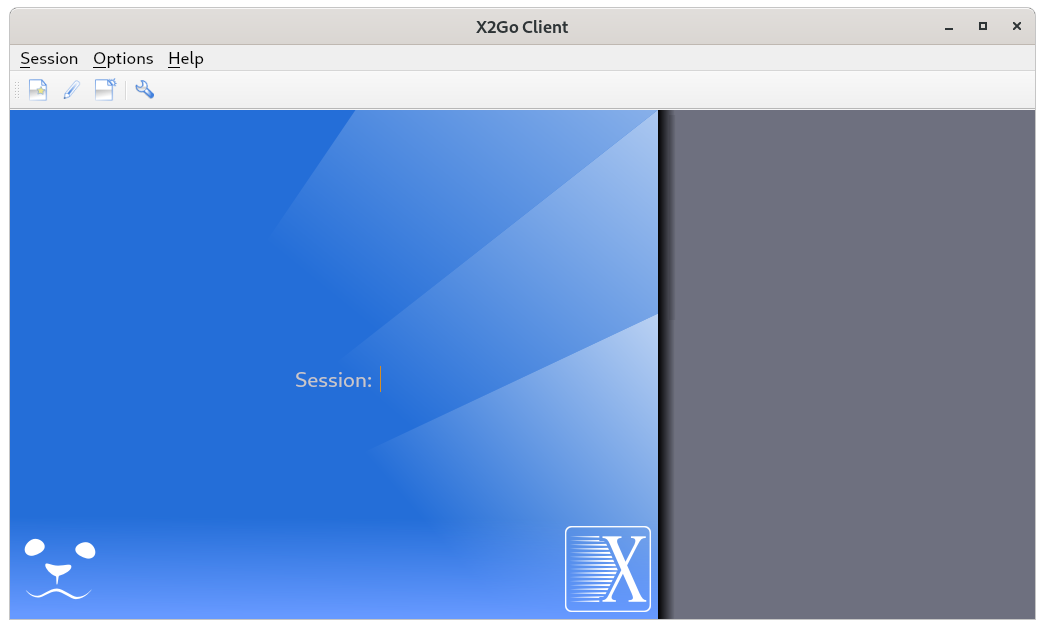 Add new session
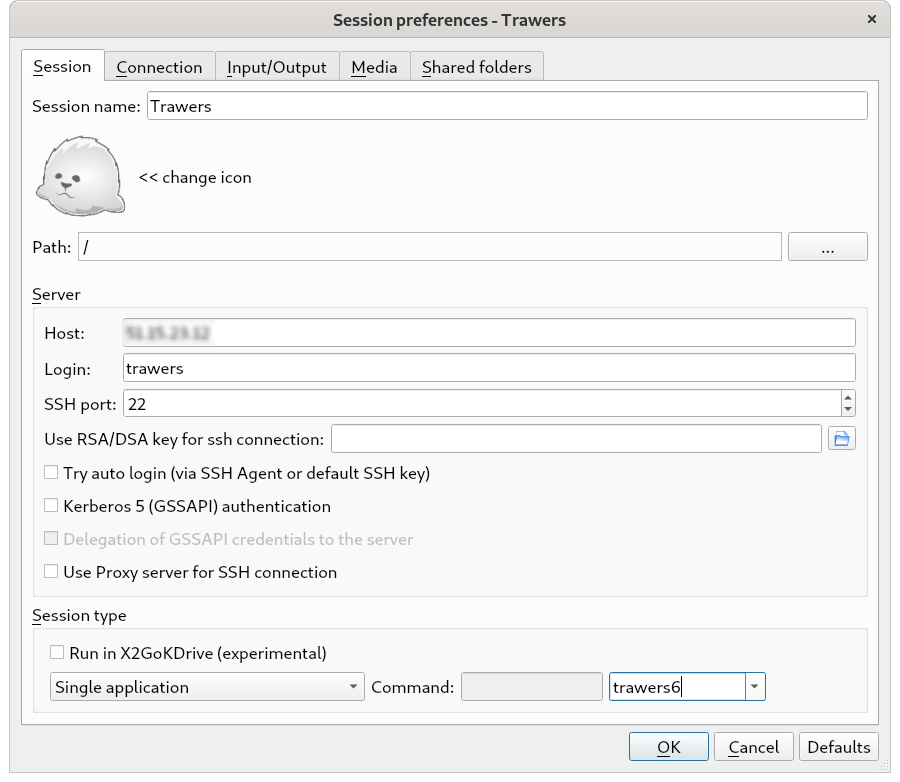 Connect via new session